
Settings
Account
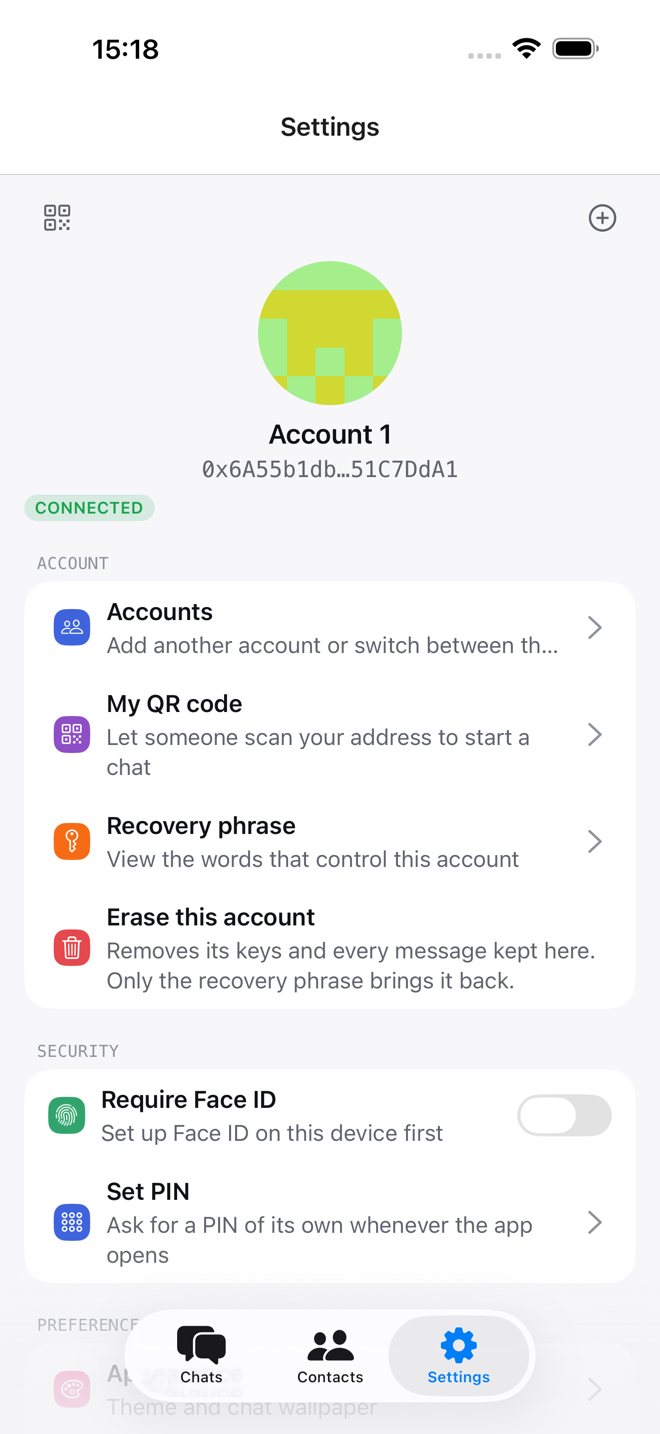
- Accounts lists every account on this device, and is where you add one or switch.
- My QR code shows your addresses as a code someone can scan to start a chat.
- Recovery phrase shows the words again.
- Erase this account is covered under Your account.
Security
- Require Face ID asks for Face ID before the app shows anything when it opens. On Android the switch is named for your fingerprint or face unlock, and on a Mac with Touch ID it is Require Touch ID.
- Also protect keys (phones only) seals the recovery phrase in the keychain so nothing reads it or signs with it without Face ID first.
- Set PIN locks the app with a 6-digit PIN of its own. Once a PIN is set, the row becomes Change PIN and Turn off PIN, and both ask for the current PIN.
The PIN
The app asks for the PIN whenever it opens. The PIN is separate from your phone's passcode: once it is set, the Face ID prompt stops offering the passcode, so someone who knows the passcode still cannot open the app. On a Mac, the Touch ID prompt stops offering your Mac's password the same way. The PIN itself is never stored. The app keeps a one-way fingerprint of it in the keychain, which can check a PIN but cannot be turned back into one.
With Face ID and a PIN both on, the app asks for Face ID, and Use PIN is there when Face ID fails. With Also protect keys on, only Face ID opens the app, because the PIN cannot unseal the keys.
Five wrong PINs in a row start a 30-second wait, and each wrong PIN after that doubles it, up to a day. Quitting the app does not reset the count.
If you forget the PIN
A PIN cannot be recovered or reset. On the lock screen, tap Forgot PIN? and
type erase. The app then deletes everything it keeps on this device,
including every account's keys, chats and settings, and you restore each
account from its recovery phrase. Notes kept only on this device are lost, so
write the recovery phrase down before you set a PIN.
Preferences
- Appearance sets light, dark or system, and the chat wallpaper.
- Privacy is below.
- Trades takes a LI.FI key for swaps and bridges. They work without one; the key only raises how often you can ask for a quote. See Wallet.
- GIFs takes a KLIPY key for GIF search. Optional, under the same rule: no key ships with the app, and yours stays on this device.
- Devices lists the phones and computers signed in to your XMTP inbox, and revokes one you no longer have.
Privacy
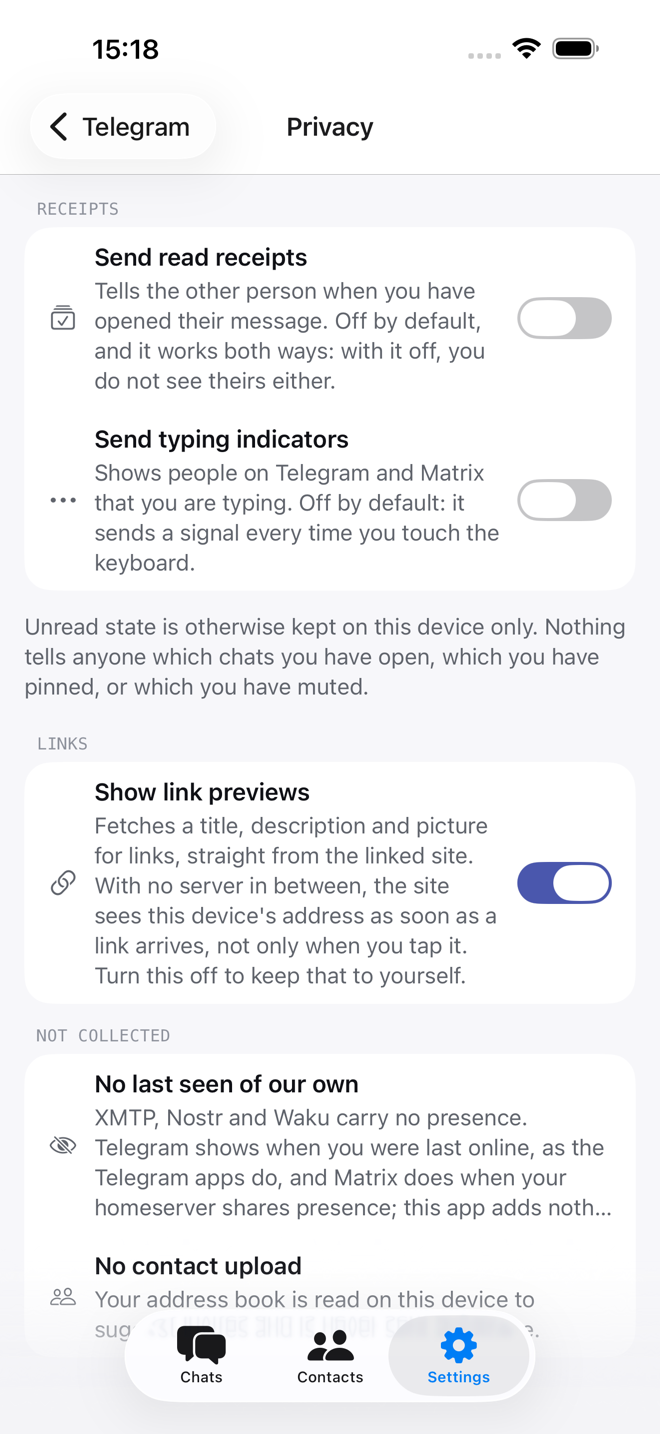
Three switches:
- Send read receipts is off. The other person does not see when you open their messages, and you do not see when they open yours.
- Send typing indicators is off. When it is on, people on Telegram and Matrix see that you are typing. It sends a signal every time you touch the keyboard.
- Show link previews is on. A link becomes a card fetched by this device straight from the linked site, so the site learns your address as soon as the message arrives, before you tap anything. Turn it off to keep that to yourself. Messages has the detail.
Below the switches the screen lists what the app does not do. It adds no last seen of its own: XMTP, Nostr and Status carry no presence, Telegram shows when you were last online the way the Telegram apps do, and Matrix does when your homeserver shares presence. It uploads no contacts: your address book is read on the device to suggest who to invite, and never sent anywhere.
The full account of what leaves your device, and to whom, is on the Privacy page.
Plugins and protocols
- Plugins is covered under Plugins & slash commands.
- Protocols connects and configures each protocol; see Protocols.
- XMTP environment picks production or the developer environment.
- Inbox id is your XMTP inbox identifier, useful for support and for other apps.