
Messages

Sending
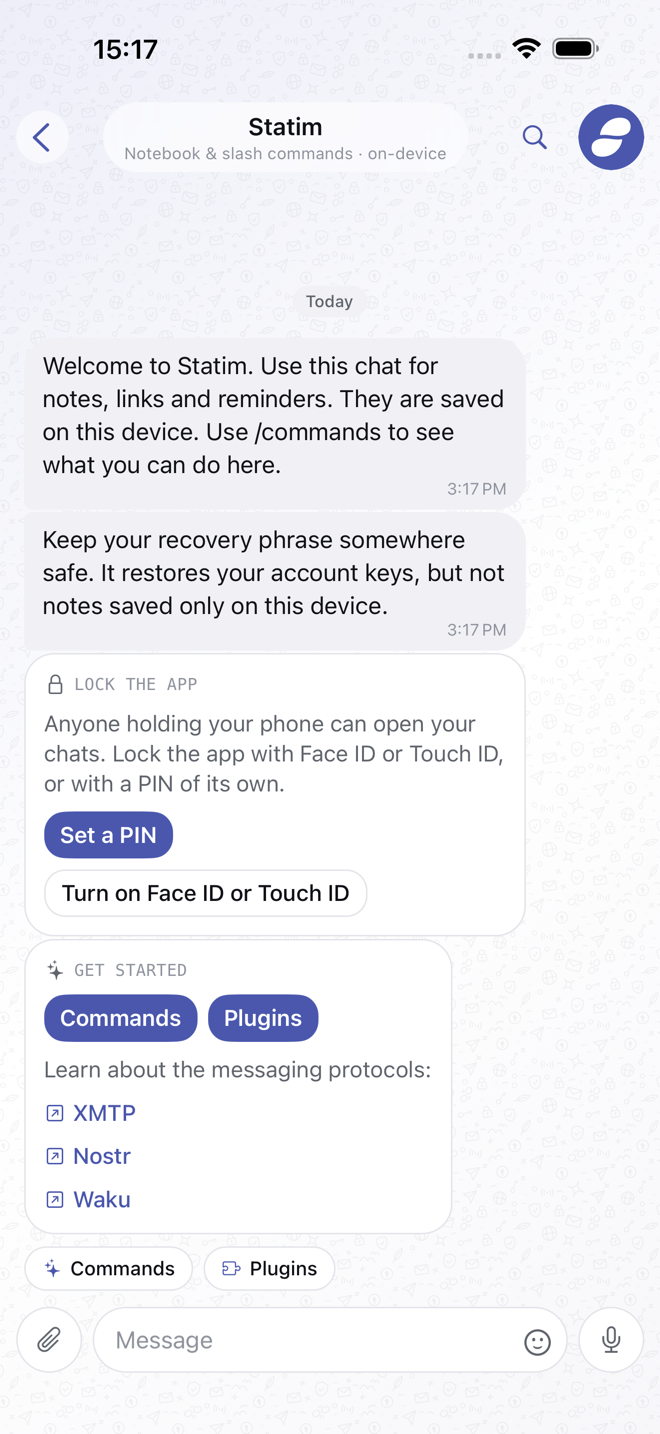
Type and tap send. A / at the start of the message opens the slash command
picker; the chips above the composer run the same slash commands without typing.
The paperclip offers your photo library, take a photo, a file, and GIF search. The microphone records a voice note. Photos are compressed before they go. On the Mac you can also paste or drop files into the message box: photos go as photos, videos as videos where the protocol takes them, and anything else as a file.
What you type but do not send stays with the chat as a draft. On Telegram the draft is saved to your account too, so it follows the chat to your other devices.
Typing @ in a group suggests its members. Someone with a username goes in as
@username; someone without one goes in by name, and the mention still reaches
them.
A message that could not be sent is marked as failed, with Try again on it. Nothing is ever sent twice.
Replies, reactions, forwarding
Long-press a message, or right-click on the Mac. The menu only lists what the protocol can do and what you are allowed to do in that chat:
- React with 👍 ❤️ 😂 😮 😢 🙏 or any other emoji. Reactions show under the message with who sent them.
- Reply quotes the message above yours; tapping the quote jumps back to it.
- Copy the text.
- Save as… (Mac) copies a photo, video or file to a folder you pick. Photos and GIFs also show a save button in their top-right corner when you point at them, and so does a photo opened full screen.
- Forward to another chat, on any protocol.
- Edit your own text. An edited message says "edited" next to its time.
- Pin message puts it in the bar at the top of the chat. It only shows where you may pin.
- Delete for everyone removes your message for the whole chat. Group admins can remove anyone's message this way.
- Delete for me (Telegram and Status) removes a message from your account only. Everyone else keeps it.
A mention of you, or of anyone, is highlighted in the message. Tap it to open that person's profile.
Links and everything tappable
URLs, phone numbers, email addresses, wallet addresses, ENS names and map coordinates are tappable in every message. Recognising them takes no network request at all, because it happens on the device.
A link also unfurls into a card: title, description and picture, a poster for YouTube, a place that opens in Maps for a maps link. That card is fetched by your device, straight from the linked site, so the site learns your network address as soon as the message arrives, not only if you tap. It is on by default; Settings → Privacy turns it off, and Settings explains the trade.
With the wallet plugin on, tapping an Ethereum address or ENS name opens the wallet's card for it: the name, the balance, and buttons to send to it or open it on a block explorer.
Read receipts
Off by default, and symmetric. With them off, the other person does not see when you read their messages, and you do not see when they read yours. Turn them on under Settings → Privacy.
Typing and last seen
When someone is typing, the chat's title bar says so, on Telegram and Matrix. Yours is sent only if you turn on Send typing indicators under Settings → Privacy.
A DM shows online or last seen under the name. Telegram reports it as the Telegram apps do. Matrix does when your homeserver shares presence, and many homeservers do not. XMTP, Nostr and Status have no presence.
Cards from plugins
Some messages are cards rather than text: a balance, a payment request, a price alert, a bot's reply with buttons. Every card carries its own plain-text fallback, so someone whose app does not have that plugin still reads what it said.
A card's buttons only ever run a slash command, through the same path as typing it. A button labelled "send" still opens the normal confirmation.