# Chats
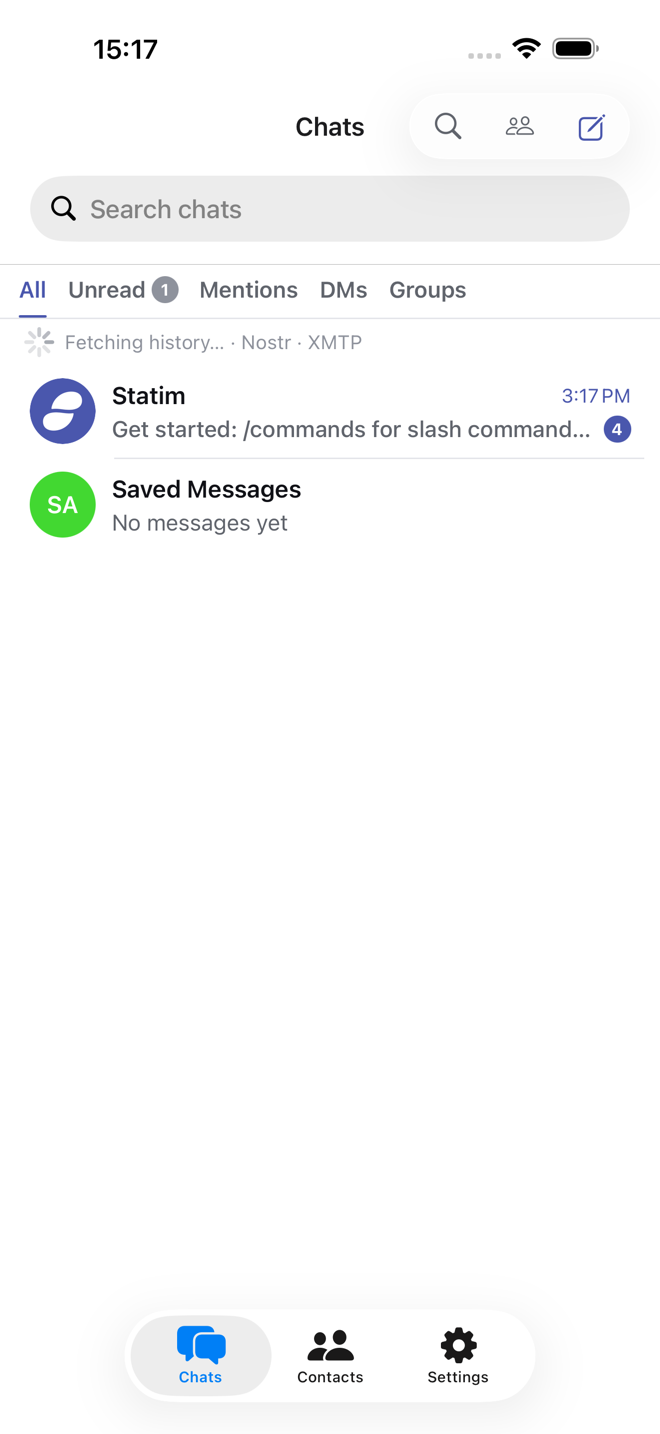
Three tabs: **Chats**, **Contacts** and **Settings**. Chats is the chat list, and
every chat in it says which network it is on.
The chat listNew chat: a protocol, then whoContacts
## The Statim chat
A fresh install has exactly one chat, the Statim chat. It lives on your
device and nowhere else. It answers `/commands`, explains what the app can do,
and is where plugins post their own messages. It also works as a notepad, since
nothing written there is sent anywhere.
## Start a chat
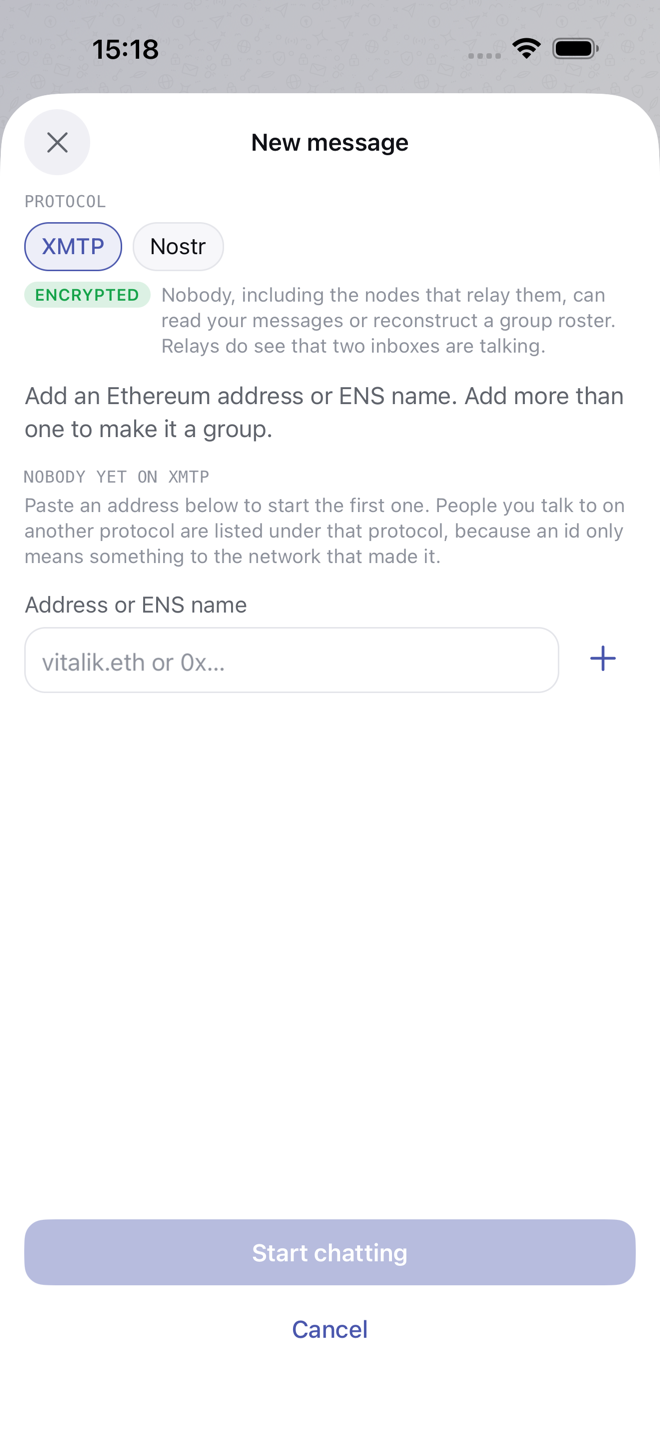
Tap the compose button at the top right of Chats.
1. Pick a protocol. Only connected protocols are offered;
[Protocols](https://statim.laibe.cc/guide/networks.md) covers connecting each one.
2. Paste their address. What that is depends on the protocol: an Ethereum address or
ENS name for XMTP, a public key for Nostr, a `zQ3sh…` chat key or a
`status.app` link for Status, a `@username` or phone number for Telegram, a
`@user:server` ID or a `matrix.to` link for Matrix.
3. Add more people and a title to make a group, where the protocol allows
it.
The app checks the person can actually receive messages there before opening
the chat, and says so when they cannot. An Ethereum address that has never
opened an XMTP app, for instance, has no inbox to deliver to.
## Contacts
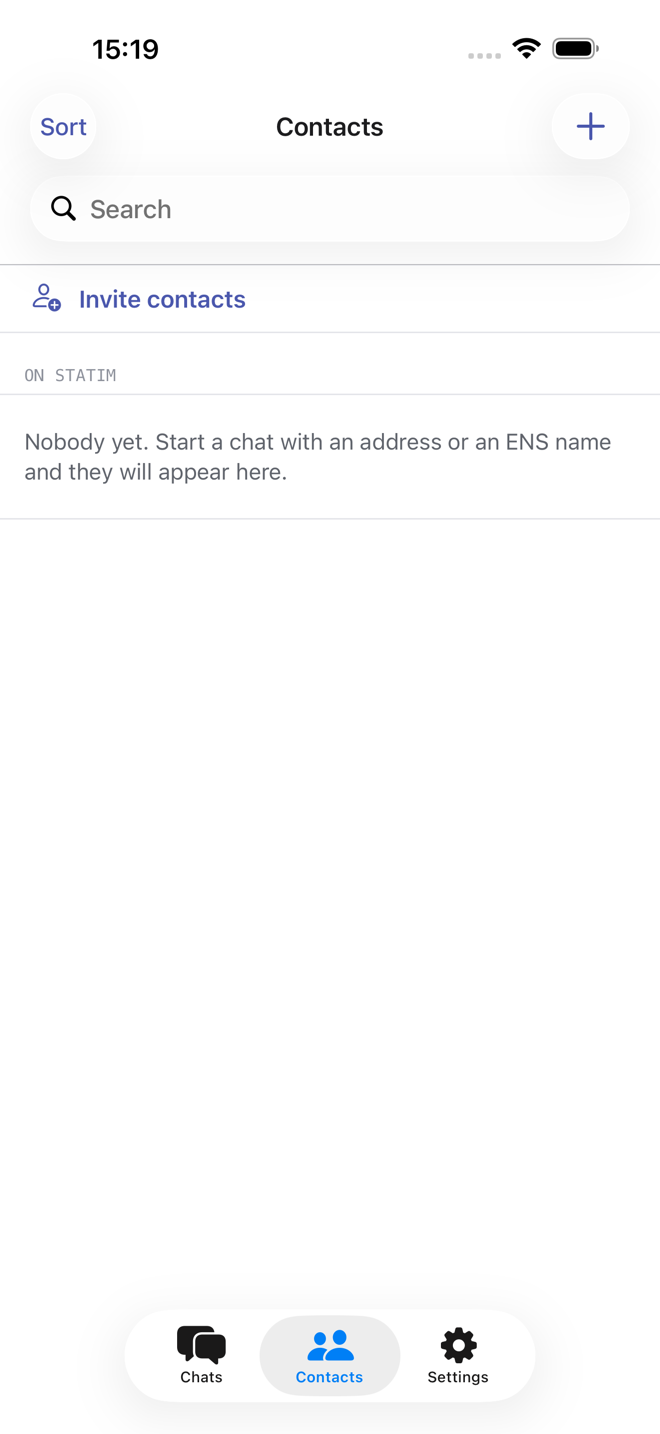
The Contacts tab lists the people you have talked to, across every protocol, and
is where you save a name against an address you will use again. **Invite
contacts** reads your device address book to suggest who to ask, on the device
only. Nothing from it is uploaded.
## Requests
A chat someone else starts arrives under **Requests** at the top of the
list, not in your chats. Open it, read it, then **Accept** or **Decline**.
Declining takes the chat off your list without blocking the sender. Until
you accept, nothing you do is visible to the sender. An
invitation to a Matrix chat arrives as a request too, and accepting it joins it.
## Continue a DM on XMTP
Telegram can read your Telegram chats, and a bridge can read the chats it
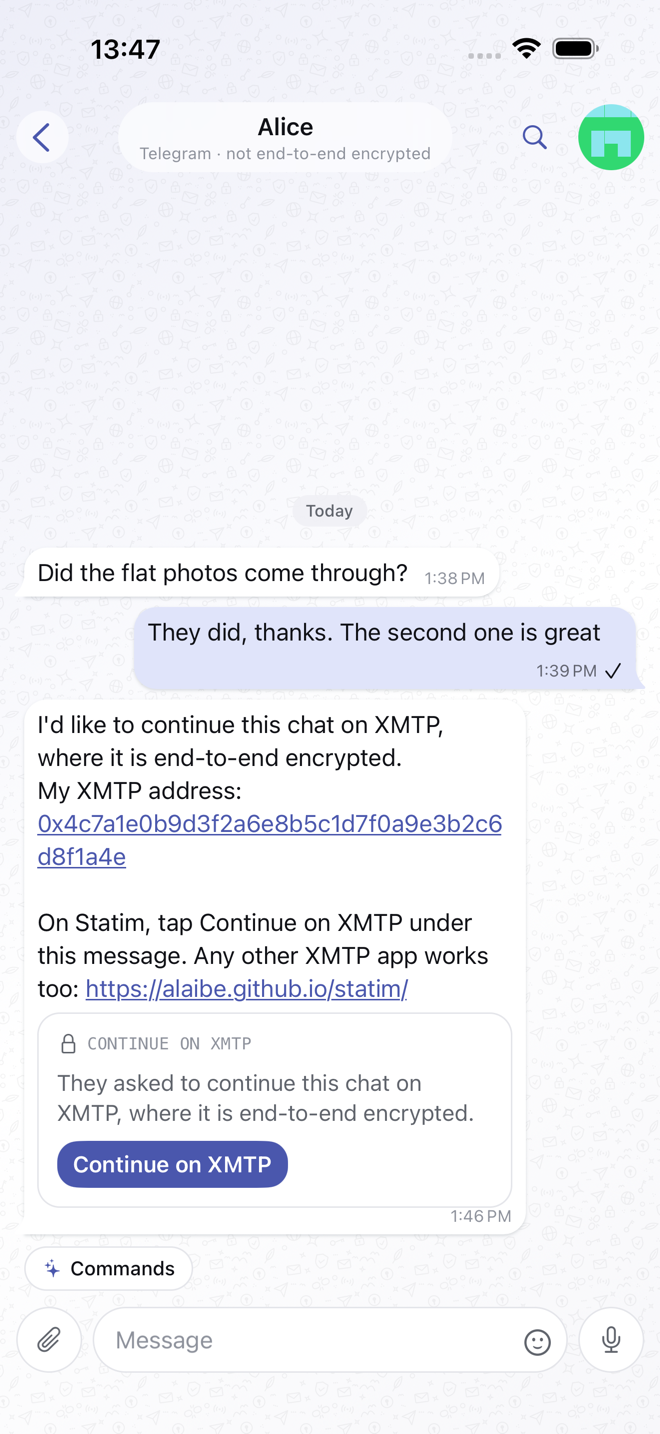
carries. To move a DM somewhere they can't, type `/move` in it. Statim sends
the other person your XMTP address. If they use Statim, they tap **Continue on
XMTP** under that message. That opens an XMTP DM with you, under the name
they already had for you, and says hello there; the hello reaches you as a
request. Tapping the card again later takes them back to that DM. With any
other XMTP app, they can message the address directly.
What the other person sees
## Folders and filters
Telegram, Matrix and every network a Matrix bridge brings in each get a folder
in the list, such as **Telegram** or **Slack**, so a busy account does not bury
the rest. Pin a chat and it stays in the main list. Archived chats have their
own **Archive** folder.
The filters at the top narrow the list: **All**, **Unread**, **Mentions** (chats
where someone mentioned or replied to you), **DMs** and **Groups**.
## Search
The search button inside a chat searches that chat; search from the list looks
through all of them. Telegram searches its whole history. Matrix searches the
homeserver's history for chats without encryption, and for encrypted chats what
this device holds. The other protocols search what is stored on this device.
On the Mac, **⌘K** jumps to a chat by name, unread chats first.
## Pin, archive, mute, mark unread
Swipe a chat, or long-press it, to pin it to the top, archive it, or
silence its notifications. Muted chats stay out of the **Unread** count and do
not notify.
**Mark as unread** keeps a chat in **Unread** until you open it again. On
Telegram and Matrix the mark is saved to your account, so a chat marked on your
phone shows unread on the Mac as well.
## Groups
Inside a group, `/members` lists who is in it, `/invite` and `/remove` change
the roster, `/rename` changes the title and `/leave` leaves.
A group's details show its description, link and member count. Admins also see:
- **Invite** to create a link, or one that needs an admin's approval.
- **Join requests**, to approve or decline each person. The chat's title bar
says when requests are waiting.
- On a member's profile, **Mute in group** (they stay but cannot send),
**Remove from group** (they can come back with an invite or a link) and
**Ban from group** (they cannot come back).
What each of those means underneath depends on the protocol. XMTP enforces
membership cryptographically; a Nostr group is simply the set of participants;
Matrix has power levels; a Status group is a signed list of membership changes
every member checks. The app only offers what the protocol can actually do.